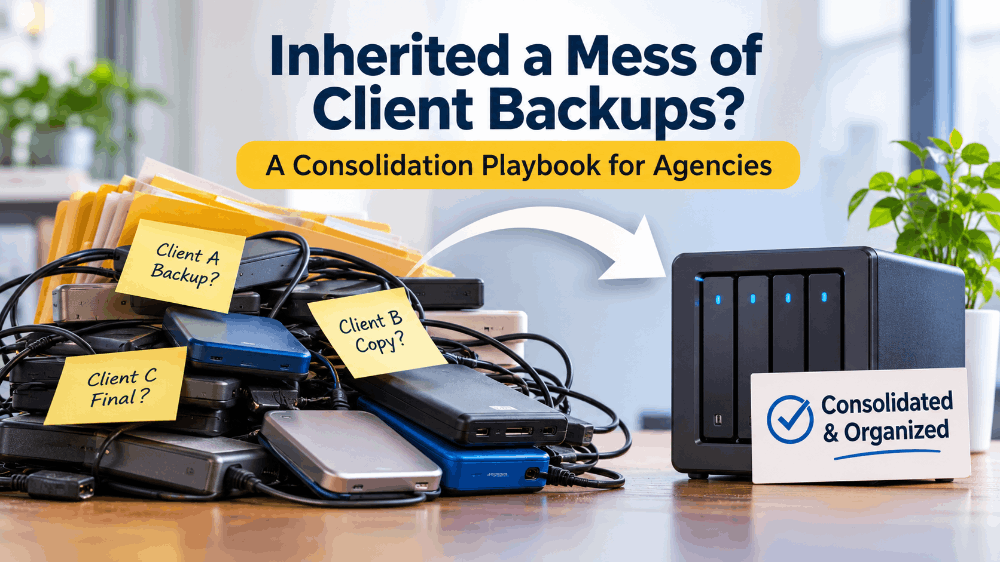
Inherited a Mess of Client Backups? A Consolidation Playbook for Agencies
Most agencies do not build their client list from scratch. They inherit it. A site comes over from a freelancer who moved on, another from an in-house developer who left, a third from a client who built it themselves on a weekend and now wants someone else to worry about it. Each one arrives with whatever backup setup someone chose years ago, if anyone chose one at all.
After a couple of years of this, the typical small agency is looking after a portfolio where every site backs up differently. Some run a plugin that sends zip files to a Google Drive nobody can log in to any more. Some rely on the host's nightly snapshot. A few have nothing. And the agency is still the one who gets the phone call when a site goes down. This article is a practical plan for getting all of that onto one system you understand, can check in a few minutes, and can eventually charge for.
Why one standard beats a dozen good tools
Here is the uncomfortable part. Most of the backup tools on those inherited sites are fine. UpdraftPlus, WPvivid, Jetpack, host snapshots: each of them works for the person who set it up and checks on it. The problem is not any single tool. It is the number of them.
When every site uses a different method, every site also has a different restore procedure, a different place the files live, a different login, and a different way of failing quietly. Nobody on your team can hold all of that in their head. So when a site breaks at an awkward hour, the first twenty minutes go on working out how that particular site was backed up, rather than restoring it.
The obvious next question is which tool to standardise on. A lot of agencies start by pricing the biggest managed names, because a single dashboard for everything sounds like the answer. It can be. But the billing model matters more for a portfolio than it does for one site. Yearly contracts, site packs and per-site storage caps all behave differently once clients start coming and going mid-year. BackupYourSite has a candid rundown of BlogVault alternatives from an agency's point of view that is worth reading before you commit. It explains where BlogVault genuinely fits, such as agencies that want staging and migration in the same subscription, and where yearly billing and one- or five-site packs start to get in the way.
Whatever you choose, the choice comes later in this process than most people expect. First you need to know what you actually have.
Step 1: Build a backup inventory before you change anything
Resist the urge to start installing things. The first week is for writing down the truth about every site, and the truth is often different from what the plugin dashboard claims.
What to record for each site
A spreadsheet is enough. One row per site, with these columns:
· Site and client. The domain, the client name, and who at the client signs off on changes.
· Host and plan. Shared, VPS, managed WordPress, or something unusual. Note the plan name, because it decides what access you get.
· Access available. SSH, SFTP only, FTP only, or control-panel only. This one column will shape most of your later decisions.
· Platform. WordPress, WooCommerce, a PHP framework, a static site, or a mix on the same account.
· Size. Rough size of the files and the database, separately. A 300 MB brochure site and a 40 GB media library need different handling.
· Current backup method. The plugin or service, the version, and how it is triggered.
· Where the backups go. The exact destination, and whether anyone at the agency can log in to it today.
· Last verified backup. The date of the newest backup you have actually seen in the destination, not the date the plugin says it ran.
· Retention. How far back you could go if you needed to.
· Who holds the credentials. The agency, the client, a former contractor, or nobody.
Where to find the real answers
Plugin dashboards are optimistic. A schedule that says "daily" tells you what was configured, not what happened. For each site, go to the storage destination itself and look at the newest file and its timestamp. If the destination is a cloud drive tied to a personal account that left with a former developer, write that down. It means the site has, in practical terms, no offsite backup.
While you are on the server, check the usual local backup folders inside wp-content. Plugins that store copies on the same server often leave months of old archives behind. They eat disk quota, they slow down every other backup that has to read past them, and they are useless the day the server itself is the problem.
Finally, ask the host what its own backups cover and for how long. Some keep a few days. Some charge for restores. Some only restore the whole account, not a single site. That is still useful as a last resort, but you need to know its limits before you count on it.
Step 2: Sort sites into tiers by what a bad day would cost
Not every site deserves the same treatment, and pretending otherwise either wastes money on brochure sites or under-protects the ones that take money. Two plain questions sort most portfolios quickly.
How much work could you afford to lose? The formal name is recovery point objective, but you do not need the jargon with clients. A brochure site that changes once a month can lose a day without anyone noticing. A WooCommerce shop that takes orders all day cannot. Orders placed between the last backup and the failure are gone from the restored copy, and someone has to reconcile them from payment gateway records by hand.
How long can the site be down? This is the recovery time objective. For a lead-generation site, a few hours offline on a weekend may be tolerable. For a site that runs paid ads, every hour offline is money spent sending people to an error page.
Three tiers are usually enough:
· Standard: low-change sites. A daily backup with a few weeks of history covers them.
· Active: sites with regular content changes, forms or member logins. Daily backups, longer history, and a tested restore at least once a quarter.
· Transactional: stores and booking sites. These may need more than one backup a day, or a tool built for near-continuous capture. Be honest with yourself here. If your chosen standard cannot meet this tier, it is fine to run a different tool for a handful of stores, as long as you document it.
The tier column in your spreadsheet will later become your pricing structure. That is not a coincidence.
Step 3: Decide what your standard has to do
Now you can pick a system, because you know what it has to cover. Write your requirements down before you look at any sales page, so the sales page does not write them for you.
Where does the backup run?
There are two broad designs. A plugin runs inside WordPress and uses the site's own PHP process, memory and scheduler to build the backup. An outside service connects to the server, usually over SSH or SFTP, and pulls the files and a database dump from outside WordPress. Plugins work on almost any host. Outside services avoid plugin conflicts and do not depend on WordPress being healthy, but they need the host to allow that kind of access. Your inventory's access column tells you which design fits most of your portfolio.
Where does the data live, and who owns the account?
Some tools store backups on the vendor's infrastructure. Others let you bring your own bucket. Either can be right. What matters for an agency is that the storage account belongs to the agency, not to an individual's personal login, and that you know which region it sits in if a client asks.
What happens when a client leaves?
This question rarely appears on comparison tables, and it should. When a client moves to another agency, can you hand over their backup history in a usable form, or does it vanish with the subscription? Can you remove one site without disturbing the others? A clean exit is part of a professional service, and it protects you if there is ever a dispute about what was backed up and when.
Can you restore when WordPress will not load?
The sites that need restoring are, by definition, the broken ones. A restore path that requires logging in to wp-admin and opening a plugin screen is fine for a bad content edit. It is no help for a white screen, a hacked account or a server that no longer exists. Find out exactly what each candidate does in that situation, from its own documentation, and then test it yourself.
Does it tell you when something did not run?
Failure emails only fire when a backup starts and then fails. The more dangerous case is the backup that never starts at all, because a scheduler stopped firing or a credential expired. For a portfolio, you want a daily report that lists every site and flags the ones with no run, so silence becomes visible.
Does the billing shape match your portfolio?
Monthly or yearly. Per site, per pack, or a pooled allowance. Per-site storage caps or one shared quota. None of these is wrong in the abstract, but each one rewards a different kind of portfolio. An agency with a stable list of long-term clients can live happily with yearly packs. An agency whose list changes every quarter will feel every unused month.
Step 4: Sort out access before you migrate
Consolidation projects stall on access far more often than on software. Fix it up front.
· Use keys, not shared passwords. If your standard connects over SSH or SFTP, create a dedicated key for the backup system rather than reusing a developer's personal login. If a team member leaves, you revoke their access without touching backups.
· Give the backup user only what it needs. On hosts that allow it, a user that can read the site files and dump the database is enough for backups. Write access is only needed for restores, and some agencies prefer to grant it only at restore time.
· Keep credentials in a shared vault. Not in a spreadsheet, not in someone's notes app. The vault entry should name the site, the access type and who created it.
· Flag the sites with no suitable access. Some shared hosts do not offer SSH, and some managed hosts restrict it. Decide now whether those sites move host, stay on a plugin with offsite storage, or get a documented exception.
· Tell clients what you are doing. If a client owns the hosting account, you may need them to enable access or add a key. A short, plain email explaining that you are improving how their site is backed up gets a faster yes than a technical request out of nowhere.
Step 5: Migrate in waves, with overlap
Do not move forty sites in a weekend. Move them in batches, and keep the old backup running until the new one has proved itself on each site.
Start with a pilot
Pick two or three sites that are low risk but representative: one small brochure site, one larger site with a decent media library, and one on the host you use most. Set them up on your new standard and let them run for at least a week. You are looking for surprises. Timeouts on the large site, a host that blocks the connection at certain hours, a database that is much bigger than the files suggested because of years of logging tables nobody cleared.
Run old and new side by side
For every site you move, leave the previous backup method in place for at least one full retention cycle of the new system, or a couple of weeks at minimum. Two backup systems running at once is a little wasteful. Having neither working because you switched off the old one too early is worse.
If any of the old tools are on yearly contracts, do not cancel mid-term expecting a refund. Check the vendor's terms first. Usually the cleanest route is to let the old subscription lapse at renewal for the sites you have already moved.
Clean up afterwards
Once a site is fully on the new standard and has passed a restore test (next step), remove the old backup plugin, delete its local archives from the server, and revoke any credentials it used to reach cloud storage. Then download and keep a final copy of the old backups somewhere you control, for as long as you promised the client history. Old plugins left installed "just in case" become one more thing to update and one more thing that can break.
Step 6: Prove every site with a restore
A backup you have never restored is a hope, not a recovery plan. Each site needs at least one test restore before you count it as consolidated.
You do not need to touch the live site to do this. Restore to a staging subdomain, a spare server or a local environment, then work through a short checklist:
1. Does the site load at all, on the restored copy?
2. Can you log in to the admin area?
3. Is the newest post or product present, with the date you expected?
4. Do images and uploads appear, or are there gaps in the media library?
5. Do forms submit, and do key plugins activate without errors?
6. For stores, is the most recent order in the restored database?
7. How long did the whole thing take, from deciding to restore to having a working copy?
Write the answer to the last question in your spreadsheet. That number is your real recovery time for that site, and it is the number you should use when you talk to clients about what you can promise. If it took three hours on a quiet Tuesday, it will not take thirty minutes at night with a client on the phone.
Step 7: Make silence visible
The point of consolidating is that checking on forty sites should take minutes, not an afternoon. That only works if the system reports in one place.
Set up a daily summary that lists every site, its last successful backup and anything unusual. Make one named person responsible for reading it each morning, with a named backup person for holidays. When a site appears with no run, treat that as a fault to investigate the same day, not something to look at if it happens again tomorrow. Most backup disasters are not a single bad night. They are weeks of quiet failure that nobody noticed until the restore was needed.
Once a month, pick one site at random and do a test restore. Over a year, that spot-checks a fair slice of the portfolio without becoming a project of its own.
Step 8: Turn the work into a service clients pay for
By now you have something most clients assume they already had: every site backed up the same way, checked daily and tested. You are doing real, ongoing work to keep it that way. It is reasonable to charge for it, and most agencies do this by folding backup into a care plan or retainer under their own name.
If you have not done that before, BackupYourSite's guide to selling white-label backup as a service covers the model in more depth. One point from it fits this playbook exactly. It argues that you should standardise the backup pipeline before you put backup on a rate card, because you cannot honour a restore promise if half your sites are still on whatever plugin the last developer left behind. That is the whole reason Steps 1 to 7 come first. The same guide also suggests making backup a default line in every new client's onboarding package rather than a separate upsell email, which in practice is much easier to sell.
Write the client-facing description in plain words
Clients do not need to know which vendor sits behind your service, and most do not want to. What they want to know fits in three sentences:
· What is covered: "Your site's files and database are backed up every day and stored separately from your hosting account."
· How long history goes back: "We keep 30 days of daily backups," or whatever your tier actually provides.
· What happens if something breaks: "If your site goes down or is damaged, we restore it from the most recent good backup. We will tell you which backup we used and what, if anything, needs re-entering."
Match every promise to something you have tested. If your restore test on that site took two hours, do not write "restored in minutes" in the proposal.
Price by tier, not by tool
The tiers from Step 2 map directly onto care-plan levels. A standard site gets daily backups and the agreed history. An active site adds longer history and scheduled restore tests. A transactional site adds whatever extra capture you arranged for it and a faster response commitment. Price each tier on the work and the risk you are taking on, not on what the underlying tool costs you per site.
Report on it, briefly
A single line in your monthly client report is enough: "Backups ran on all scheduled days this month. Last restore test: 14 October, completed successfully." That one line reminds the client that the service exists and is working. Clients cancel things they forget they are paying for.
Plan the exit at the start
Decide now what you will hand over when a client leaves: the last few backup sets, in a standard format, delivered on a specific date. Put that in your terms. It removes a source of friction at a moment when relationships are already strained, and it shows clients you are not holding their data hostage.
Mistakes that slow consolidation down
The same handful of problems turn up in most of these projects. Knowing them in advance saves a few weeks.
· Trusting the plugin's status screen. Always confirm in the storage destination. A green tick in wp-admin is not evidence that a file exists somewhere else.
· Switching off the old backup too early. Overlap feels redundant until the week the new system has a problem on one host.
· Forgetting the database size. Logging plugins, abandoned-cart tables and old session data can make a database several times bigger than it needs to be. Clean it up before migrating, after taking a backup, of course.
· Leaving personal cloud accounts in the chain. Any backup that only one person can reach is a single point of failure that walks out of the door with them.
· Treating every site the same. Over-protecting brochure sites wastes money, and under-protecting stores costs orders.
· Skipping the restore test because "it's the same system as the other sites". Hosts differ. Database versions differ. Each site needs its own proof.
· Not telling the client. A client who finds a new access key on their hosting account without warning will, quite reasonably, ask questions.
A realistic 30-day schedule
For a small agency with somewhere between twenty and fifty sites, the work fits into a month alongside normal client work if you are disciplined about it.
Week 1: Inventory. Fill in the spreadsheet for every site. Check every storage destination by hand. Flag sites with no working offsite backup as urgent, and give those a temporary fix right away, even if it is just a manual download, so nothing is unprotected while you plan.
Week 2: Decide and prepare. Assign tiers. Write your requirements. Choose your standard and set up the pilot sites. Create access keys and the credentials vault. Email clients who need to grant access.
Week 3: First waves. Review the pilot after a week of runs. Fix what it found. Move the first large batch, keeping old backups running. Start test restores on the pilot sites.
Week 4: Remaining waves and cleanup. Move the rest. Test-restore each site and record the time. Remove old plugins and local archives from the sites that have passed. Set up the daily summary and name the person who reads it. Draft the care-plan wording.
Some sites will not fit the schedule: the store that needs special handling, the host that refuses SSH, the client who takes three weeks to reply. That is normal. Document each exception in the spreadsheet with a reason and a review date, and keep going.
Conclusion
An inherited portfolio with a different backup on every site is not a sign that anyone did a bad job. It is what happens when sites change hands over years. But it leaves the agency carrying risk it cannot see and recovery procedures nobody can remember.
The fix is not glamorous. Write down what you have. Sort sites by what a bad day would cost. Decide what your standard must do before you choose a tool. Sort out access, migrate in waves with overlap, and prove each site with a real restore. Then make the daily check fast, and only after all of that, put the service on your rate card under your own name.
Done this way, backup stops being a vague worry attached to every site and becomes one system you can explain, check and stand behind. That is something clients will pay for, and something your team will thank you for the next time a site goes down late at night.