Plugin-Based WordPress Backups: Cron Gaps, Plugin Changes and a Checklist That Holds Up
Why a green tick in the dashboard proves less than you think
Install a backup plugin, pick "daily", connect a storage account, and the job feels finished. The plugin shows a list of dated backups. Sometimes it sends a cheerful email. For a lot of site owners that is where the thinking stops.
The trouble is that a backup list tells you what the plugin believes it did. It does not tell you whether the archive is complete, whether it can be restored on a different server, or whether the schedule is still firing on the days you are not looking. Those are three separate questions, and each one has a way of failing without making any noise.
This article walks through the three weak points that matter most for plugin-based backups: the scheduler that triggers them, the hosting limits that interrupt them, and the vendor behind the plugin, who can rename it, sell it, or change what the free version does. None of this is an argument against plugins. Plenty of sites run on them for years without a problem. The point is to know what you are relying on, so a bad Tuesday does not become a lost month of orders.
By the end you should have a short checklist you can run on any site in an afternoon, and a clearer idea of which failures you can fix with settings and which ones need a different design.
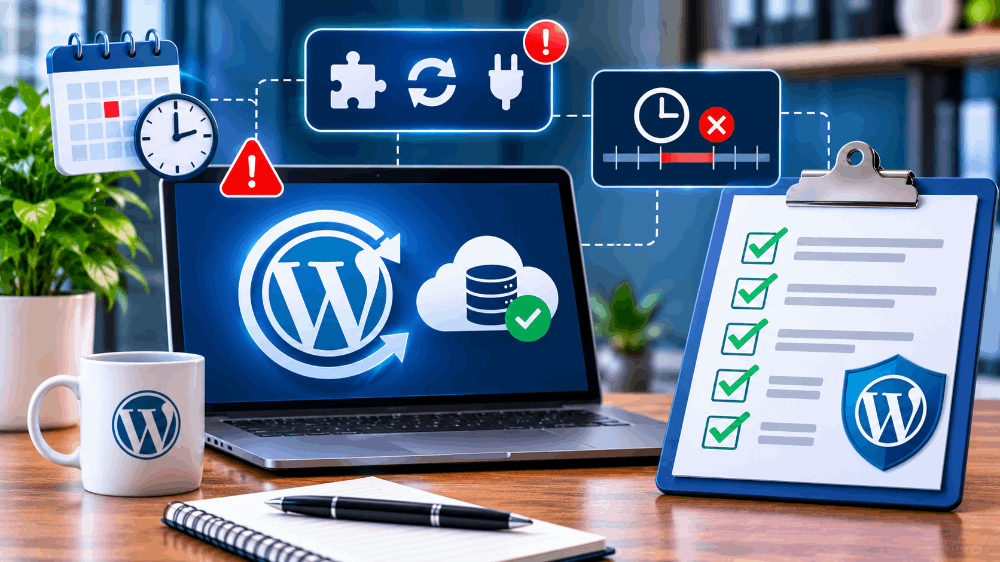
How a typical backup plugin actually works
Almost every popular backup plugin does the same four things, in roughly this order. It dumps the database into a file. It walks the file system and collects the themes, plugins and uploads. It compresses everything into one or more archives, often split into chunks so no single file gets too large. Then it sends those archives somewhere: the same server, a cloud bucket, an FTP location, or a vendor's own storage.
All of that happens as PHP code running inside WordPress. That single fact explains most of what goes wrong. PHP on a hosting account runs under limits. There is a maximum execution time, a memory ceiling, and often a cap on how many processes your account can have at once. A backup is exactly the sort of job that pushes against all three, because it is long, it is memory hungry, and it touches every file you own.
Good plugins work around this by splitting the job into small steps. They back up a few tables, stop, schedule the next step, back up some files, stop again, and so on until it is done. If a step fails, they can often retry just that step. This resumable design is a real engineering achievement, and it is why backup plugins work on cheap hosting at all.
It also means the plugin needs something to wake it up between steps. And that brings us to the scheduler.
The two kinds of "schedule"
There are two completely different things people mean when they say a backup is scheduled. One is a real operating-system timer, such as the cron daemon on a Linux server, which wakes at an exact time whether or not anyone is visiting the site. The other is WP-Cron, WordPress's own imitation of a timer, which only runs when someone loads a page. The first is dependable. The second is a convenience that was designed so WordPress could work on hosts where nobody could set up the first.
Most backup plugins use WP-Cron for the schedule, and also for the chained steps between chunks. So when WP-Cron has a bad day, the backup has a bad day.
WP-Cron: the scheduler that needs an audience
The WordPress developer handbook describes WP-Cron plainly, and it is worth reading once. In short, WordPress keeps a list of scheduled events. Each time a page is requested, WordPress checks that list. If something is due, it triggers the event. If nobody requests a page, nothing checks, and nothing runs.
Think of a shop with an alarm that only goes off when a customer walks through the door. If the shop is busy, the alarm is close enough to on time. If the shop is empty from midnight to nine, the 2 a.m. alarm sounds at nine.
For a backup, a late start is not always a disaster. A backup that was meant to run at 2 a.m. and runs at 9:10 a.m. is still a backup. The trouble starts in the less obvious cases.
When a late backup becomes a missing backup
Several common conditions turn "late" into "never". A site behind a full-page cache can serve nearly every visitor a static file without ever running PHP, so WordPress never gets its chance to check the schedule. A host that disables WP-Cron entirely, which many do on purpose to save resources, will not run it at all unless a real cron job has been set up to replace it. A security plugin or firewall rule that blocks loopback requests can stop WordPress from calling its own cron endpoint. A staging site, a brochure site for a seasonal business, or a site nobody has linked to in a year may simply have too few visits.
The most awkward part is that none of these produces an error. From WordPress's point of view, nothing failed. The check never happened, so there is nothing to report. The plugin's backup list just stops growing, and the last green tick keeps sitting there looking recent.
Checking whether your own schedule is healthy
You can test this without any special tools. Open the backup plugin's list and look at the timestamps of the last ten backups. If you scheduled them for the same hour each day, the real start times should cluster around that hour. If they wander across the clock, or if there are gaps of a day or more that you did not choose, WP-Cron is not keeping time for you.
A second check is to look at what WordPress thinks is waiting. A scheduler-viewer plugin, or the WP-CLI cron commands, can list upcoming events and show whether any are overdue. The WP-CLI reference documents wp cron event list and wp cron event run --due-now in its command pages at developer.wordpress.org/cli/commands/cron. An overdue backup event that is sitting there for hours is the clearest sign you could ask for.
A third check is to read your wp-config.php for the DISABLE_WP_CRON constant. If it is set to true, someone decided that a server-level job would call WordPress instead. That is a fine setup, but only if the server-level job exists. Find it in the hosting control panel's cron section and confirm it is still there after any host migration.
The fix inside the plugin model
If you want to stay with a plugin, the standard repair is to turn off the visitor-triggered behaviour and replace it with a real timer. You set DISABLE_WP_CRON to true, then create a cron job at the hosting level that requests wp-cron.php every few minutes, or runs the WP-CLI cron command. Now the schedule keeps time whether anyone visits or not. Many managed hosts will do this for you if you ask.
That fix works well for the schedule. It does not solve everything, because the backup job itself is still PHP running inside WordPress, still subject to time and memory limits, and still dependent on WordPress loading successfully. If a plugin conflict or a bad update takes the site down with a fatal error, the backup plugin goes down with it. For some sites, that is acceptable. For others, it is the whole problem.
If you are weighing up other designs, it helps to read how others have framed the trade-off. One walk-through of this exact issue is the piece on an UpdraftPlus alternative when WP-Cron fails, which compares a cron-driven plugin schedule with a backup triggered from outside WordPress. You do not have to agree with its conclusion to find the comparison table useful for your own checklist.
Hosting limits: the other quiet failure
Even with a perfect schedule, the backup still has to finish. Shared hosting is where this gets interesting, because hosts tune their limits for serving pages, not for archiving a gigabyte of images.
Execution time and memory
PHP stops a script that runs longer than max_execution_time. It also stops a script that asks for more memory than memory_limit allows. A resumable plugin copes with the first by working in small slices. It copes with the second by keeping each slice small enough to fit. When both limits are tight and the site is large, the plugin may need many slices, and any slice can fail.
The good plugins retry. The better ones tell you when a retry has been used up. The worst case is a plugin that fails a slice, gives up quietly, and still records the run as "completed" because the final step ran. This is rare, but it is exactly the kind of fault that no one finds until a restore is attempted.
Plugin documentation tends to be honest about this. The UpdraftPlus page on WordPress.org, for example, admits that although it can resume a run, it has limits, and it suggests a more capable host as the real answer to repeated failures. That is a fair and useful thing for a vendor to say, and it applies equally to every plugin in this category.
Large uploads and the file-count problem
Image-heavy sites and WooCommerce stores are the usual strain cases, but a site with an enormous number of small files can be just as awkward. Walking a directory with hundreds of thousands of entries takes time even if the total size is modest. Some hosts also limit the number of files, called inodes, on an account, which can cause a backup to fail halfway because the temporary archive has nowhere to go.
Look at where the plugin writes its temporary files. If it builds archives in a folder on the same server, a backup can fill your disk quota and break the site it is meant to protect. That is not a hypothetical. It is one of the most common reasons a hosting provider sends a "disk space" warning in the middle of the night.
Storage that lives next to the site
A backup that sits in wp-content/uploads or any folder on the same account is a convenience copy, not a disaster recovery copy. A compromised account, a deleted hosting plan, or a billing lapse can take the site and the backup together. The recommendation you will see from government security guidance and from any sensible host is the same: keep at least one copy somewhere that does not share a login or a failure with the original.
The US government's CISA publishes plain guidance on data backup and recovery for small organisations, and it is worth skimming at cisa.gov. The core idea there is to keep copies offline or off-site and to test that you can use them. That advice is not WordPress-specific, and it does not need to be.
When the plugin itself changes
The third weak point has nothing to do with servers. It is the vendor.
A plugin is software that somebody else maintains. They can raise prices, reduce what the free version does, change where backups are stored, hand the project to a new owner, or rename it altogether. Any of these can happen while your site keeps running exactly as before, and none of them will trigger an alert on your site.
Renames and the documentation gap
A good recent example is BackupBuddy. For many years it was sold by iThemes, and the company is now known as SolidWP, with the backup product appearing under the name Solid Backups. If you manage a site that has had BackupBuddy installed for a decade, you may find the plugin screen, the vendor emails and the support pages all using different names for the same thing.
A rename alone should not break anything. What it does do is scatter the information you need during a restore. Tutorials written under the old name keep ranking in search. Licence emails come from an unfamiliar sender. A new team member who was never told about the old name cannot work out which product the invoice refers to. If you want a careful explanation of what changed and what did not, including how the older restore script fits in, the write-up on BackupBuddy and the Solid Backups rename goes through it step by step. Check any detail you rely on against the vendor's current documentation, since product pages and plans move.
The general lesson holds for any plugin. Write down, in a place you control, the exact plugin name, the vendor, the licence owner's email and the restore method. Do it now, while everything works. During an outage you do not want to be searching old forum posts for the name of the tool you installed years ago.
Free tiers move
Free versions of backup plugins are marketing for the paid versions, which is a perfectly reasonable business model. But it means the line between free and paid is a commercial decision, and it can shift. A feature that restored in one click might become a paid extra. A cloud destination that was free might be moved behind a licence. A size limit might be tightened or loosened.
The way to protect yourself is to review plugin changelogs when you update, at least for the backup plugin. It takes two minutes. Look for words like "removed", "moved to premium", "deprecated" and "no longer supported". If your plan depends on a feature, check it is still there.
Backup formats and lock-in
Some plugins write standard formats, such as zip archives and SQL dumps, that any competent person could open by hand. Others use their own container format that only the plugin can read. Neither choice is wrong, but you should know which one you have. A standard archive can be rescued with ordinary tools if the vendor vanishes. A proprietary one means the vendor's survival is part of your recovery plan.
When you evaluate a plugin, ask one practical question: if this plugin disappeared from the repository tomorrow, could I still get my site back from the backups I already have? If the answer is "only with that plugin", then keep a plain copy of the database dump and the uploads folder alongside it.
What "restore" really requires
People tend to test backups by looking at them. A better test is to restore them somewhere. The difference is large, and it is where the unpleasant surprises hide.
The restore path is a different code path
Making a backup and restoring one are two separate operations. A plugin can be excellent at the first and clumsy at the second. A restore must unpack the archive, recreate files with the right permissions, import the database, and often rewrite URLs if the domain has changed. Each of those steps can fail for its own reasons.
It also matters where the restore runs. A plugin-based restore usually assumes WordPress is working well enough to load the plugin. If the site is down because of the very problem you are recovering from, you may first need a clean WordPress install to host the restore tool. Some vendors provide a standalone script for exactly this case, which you upload to an empty install and run from the browser. That design works when WordPress is broken, but it brings the same memory and time limits you hit during backup, now applied to unpacking instead of packing.
Do a drill on a copy
Pick a quiet day and restore your latest backup to a throwaway location, such as a staging subdomain or a local development setup. Then check the things that matter. Does the home page load? Can you log in? Do images appear on older posts? Do forms submit? On a shop, does a test order go through? Does the database contain the most recent orders or posts you expect?
Write down how long it took and what you had to look up. That note is your recovery runbook. The first time you make it will be messy, and that is the point. The mess you find on a calm afternoon is mess you will not meet at midnight with a client waiting.
Know your recovery numbers
Two plain questions shape the whole plan. How much recent work can you afford to lose? And how long can the site be down? The first sets how often you need to back up. A shop taking orders all day cannot lean on a nightly backup alone. The second sets how fast your restore process needs to be. If you cannot say either number out loud, nobody has decided them, and the default is whatever the plugin happens to do.
The NIST contingency planning guide, SP 800-34, covers these ideas in formal terms under the names recovery point and recovery time. You do not need the formal language, but the thinking is sound and it scales down to a one-person site.
Alternatives to running the backup inside WordPress
If the failures above worry you, there are other designs. They each trade one set of risks for another, so it is worth being fair about them.
Server-level backups from the host
Many hosts take snapshots of accounts or whole servers. These do not depend on WordPress at all, which is a real strength. The weaknesses are that they usually live with the same provider as the site, retention can be short, and restoring a single file or a single table can be awkward or may need a support ticket. Treat them as a useful layer, not the only layer.
Backups pulled from outside
Another approach is to run the backup from a separate system that connects in over SSH or SFTP, fetches the files and a database dump, and stores them somewhere independent. Because the schedule lives on the outside system, WP-Cron and PHP limits are not involved. Because the storage is separate, a compromised or deleted hosting account does not take the backups with it. The cost is that you need SSH access, which not every cheap plan offers, and you are trusting a second party with credentials.
backupyoursite's own materials describe this model, with backups pulled over SSH from outside the site and kept in separate object storage, and they are upfront that it needs SSH access to work. That is a fair summary of the trade-off, and the same trade-off applies to any tool that works this way.
Staying with a plugin, but layering
For many sites the sensible answer is not to switch but to combine. Keep the plugin for convenience and quick rollbacks. Fix the cron issue with a real timer. Send its backups to storage that is not on the same account. Add a second, independent copy, whether that is a host snapshot or an outside pull. Two imperfect systems that fail for different reasons are better than one system you trust completely.
A checklist you can run in an afternoon
Here is a short routine. It suits a freelancer handing over a site or an owner who has not looked at the backup setup in a while.
Schedule
- Look at the timestamps of the last ten backups. Do they match the schedule you set?
- Check whether
DISABLE_WP_CRONis set. If it is, confirm a server-level cron job exists and is running. - List scheduled events and look for anything overdue.
- If the site has very little traffic or sits behind a cache, assume WP-Cron is unreliable until shown otherwise.
Completeness
- Check that the backup includes the database, the uploads folder, themes and plugins.
- Compare the archive sizes over time. A sudden drop is a warning.
- Open the plugin's log for the last run and read it, rather than trusting the summary line.
Location
- Confirm at least one copy is stored away from the hosting account.
- Confirm the storage credentials are still valid and the account is still paid up.
- Check who owns the storage account. If it is a former developer's personal one, change it.
Restore
- Restore the newest backup to a copy of the site and test the pages that matter.
- Time it. Write the steps down.
- Confirm you know the vendor's current name, the licence holder and where the documentation lives.
Vendor
- Read the changelog before updating the backup plugin.
- Keep a plain copy of the database dump if the plugin uses a closed archive format.
- Note renewal dates for any paid licence in a calendar someone actually checks.
Frequently Asked Questions
Is WP-Cron really unreliable?
It is reliable enough on busy sites and unreliable on quiet ones. The design waits for a page request, so its accuracy follows your traffic. Replacing it with a real server timer removes the dependence on visitors.
How often should a small site run a backup?
It depends on how much new content or data you can afford to lose. A brochure site that changes monthly is fine with a weekly run. A shop or a membership site that changes through the day needs more frequent database backups, even if full file backups stay daily or weekly.
Are free backup plugins good enough?
Often, yes, for scheduled backups to external storage. The limits tend to appear around restores, migrations and large sites. Check what the free version does today rather than relying on what it used to do.
Can I rely on my host's backups alone?
They are a good extra layer. On their own they share fate with the hosting account, retention may be short, and partial restores can be awkward. Keep one copy elsewhere.
How do I know a backup is complete?
You do not, until you restore it. Size trends and logs help, but a restore drill on a copy of the site is the only real proof.
What if my backup plugin is renamed or sold?
Usually nothing breaks at once. Record the new name, the licence owner and the current documentation location, and check the changelog before the next update.
Conclusion
Backup plugins do real work and they are easy to like. They also rest on three things that deserve a second look: a scheduler that needs visitors, hosting limits that interrupt long jobs, and a vendor whose decisions you do not control.
None of those problems needs a dramatic fix. Replace WP-Cron with a real timer. Keep one copy off the hosting account. Run a restore drill on a copy of the site, and keep notes about what you did. Read the changelog when the plugin updates.
Do that once, and you will know far more about your own recovery than most site owners ever find out. Do it twice a year, and the bad Tuesday, when it comes, will be a nuisance rather than a crisis.
Written as an independent guide to WordPress backup planning. Product names belong to their respective owners; check vendor documentation for current features and terms.